Heyweb Reboot 2014 in Progress

It is 2014, and it is time for a change. The previous branding was put together in 2010, and the theme doesn’t take into account responsive design or improved page layouts. This is also an opportunity to do some housework on the site and do some organisation. The Heyweb Reboot 2014 is in progress.

Here is the immediate plans of the reboot program, in no particular order:

  • Update to WordPress’ Twenty Fourteen theme
  • Make use of featured content for front page of the website
  • Build an index of content to make it easier to find information
  • Rebrand with a focus on delivering SharePoint related content
  • Consolidate information on projects and experience

Apologies if things go askew. The aim is to have everything stabilised by end of April 2014.

Workbook is not in a trusted location

I’ve been working with a vendor to setup Microsoft Project Server on a client’s site, and they came across an issue of The Data Connection File … workbook is not in a trusted location.

The simplest answer is to go to Excel Services, and add the URL location to the Trusted Data Connections.  The only problem was that this setting did not seem to work.  Every reference to this error on the web indicated this was all that was required.  After trying a few different things, I attempted to add the trusted data connection library via PowerShell:

$excel = Get-SPExcelServiceApplication
New-SPExcelDataConnectionLibrary -Address"http://projectserver/BICenter/Data%20Connections%20for%20PerformancePoint/English%20(United%20States)/SQLSERVER_AnalysisServices_Database" -Description "Project Server DCL" -ExcelServicesApplication $excel

I attempted to load the spreadsheet and I did not get the error!  It came down to the fact that while looking through all the parameters for the PowerShell cmdlet of New-SPExcelDataConnectionLIbrary that I set a description for the entry for the trusted data connection.

After trying a few other connections, I also discovered that as well as having to set a description, I also needed to ensure I had the the full path to the data connection files including the document library and folder structure.  Also of note, you may need to wait a few minutes for the changes to take affect, there is some caching done by Excel services before it recognises the changes made to its configuration.

For reference, the system build this client was running was SharePoint 2010 SP1 with the June 2012 Cumulative Update applied.  Given that these particualar details are not mentioned elsewhere online, I wonder if this is perhaps a regression.  If what I have described addresses the same problem you are having with the error Data connection file … workbook is not in a trusted location, please leave a comment below with details of your farm build.

The failed SharePoint blog experiment

It is almost a year since I launched my dedicated SharePoint blog, www.HeySharePoint.com. Alas, I had strong momentum for about six months but was unable to gain traction. I don’t want to use the term “competitive”, but there are a lot of people blogging about SharePoint. This is not a bad thing, as it shows the strength of the community behind this great product. It just makes it harder to get heard.

One of what I thought would be a great drawcard to HeySharePoint.com would be a weekly newsletter aggregating the top Tweets of the week for SharePoint. I tried to promote this as best I could but couldn’t obtain lift off. In the last few months Twitter has updated their API, completely breaking my interface which collated the data. I do intend on bringing this back and making it available on this site, however won’t be publishing it on a weekly basis as I was on HeySharePoint.com (you can see a sample of the results over there). If anyone would be interested in receiving a weekly email, please leave me a comment on this post.

So, I have decided to indefinitely halt any further work on HeySharePoint.com, but will leave the content there for as long as I can. I intend to get back into blogging, however I have had a slight career shift, now focusing on a SharePoint pre-sales role that I am really excited about. I intend to write from a less technical perspective as I have in the past, and add less SharePointy stuff as well.

For everyone who has left their kind words and found this blog to be useful, thanks for your readership, and I hope that you find future content as equally as helpful.

The SharePoint Proveloper

I am a SharePoint Proveloper, a new hybrid of a SharePoint Professional (aka Admin, Infrastructure/Systems Engineer) and a SharePoint Developer.  You may be one too.

Traditionally, someone working on a SharePoint system falls into one of the two distinct camps of Professional or Developer.  Yes, there are other SharePoint roles too, but the emphasis of the Proveloper is on these two areas.  When working in the SharePoint space, there is a lot of jest that ‘that is a system problem’ or ‘I am not a developer’ between the two sets of parties.  As an ‘infrastructure guy’ myself, I am guilty of having used some of these lines from time to time.

However, the more I work with SharePoint the more I see a blur between these divisions.  From a SharePoint IT Professional’s point of view, it is important to understand certain aspects of SharePoint development.  Understanding of these aspects can lead to better outcomes for the SharePoint IT Professional, and turn them into becoming a SharePoint Proveloper.

Although my perspective is one-sided, I imagine the converse also applies.  Usually a SharePoint Developer has little concern for the underlying platform supporting SharePoint.  With a deeper understanding of the infrastructure fundamentals, it can lead to better outcomes for the SharePoint Developer, and turn them too into a SharePoint Proveloper.

For the remainder of this post, I wish to focus on the SharePoint Professional, and look at why it is important to understand different aspects of SharePoint development.  This is heavily influenced by my own background.

Here are a few reasons why it is important to have these skills and know something about SharePoint development, from the viewpoint of a SharePoint IT Professional:

The SharePoint Proveloper: Conversations

Probably the most important advantage of being a SharePoint Proveloper is the ability to have informed conversations with others.  The advantage of knowing different aspects of development comes by having more knowledge around how SharePoint operates and how SharePoint can be extended. When talking to people within the organisation, the business users, a SharePoint Proveloper knows to some extent what may or may not be possible.  In turn, the SharePoint Proveloper can have conversations with the development team and explain business needs in an informal business analyst capacity.

The conversation continues between the SharePoint Proveloper and the developers.  The SharePoint Proveloper will need to understand how custom built solutions work when deploying them to the farm.  They also need to be able to discuss topics such as availability, security and capacity and understand the impact a custom solution may have to a SharePoint environment.

The SharePoint Proveloper: Deployments

In some organisations, custom solutions are deployed by the development team.  In other organisations, custom solutions are deployed by the infrastructure team.  The solution may be a third party product, requiring someone to deploy it into the SharePoint farm.  The SharePoint Proveloper needs to have skills to handle this process, and also how to handle it when things do not work.

When working with iherb promo and custom solutions, the SharePoint Proveloper is going to need to understand things like the Global Assembly Cache (GAC), a place where compiled code (.dll files, also referred to as binaries) is stored and registered for Windows and other applications like SharePoint to use.  This also ties in with understanding the relationship of web.config files and also artefacts that can be deployed to the SharePoint hive.

The SharePoint Proveloper: PowerShell

For anyone working on SharePoint, PowerShell scripting is a mighty tool to know how to use.  The strength of PowerShell is to perform and automate tasks that are usually done in the GUI.  Every SharePoint Proveloper needs to know PowerShell.  It is not limited to just setting up and configuring a SharePoint farm, but also useful for performing site administration as well.

Sure, a lot of SharePoint Professionals may know some PowerShell.  To try and position the amount of PowerShell knowledge a person may have, I would say there are three levels of ability that someone may have when using PowerShell for SharePoint:

  1. Able to use cmdlets to achieve simple things.  Usually single lines and may compose simple scripts.
  2. Extends to use the SharePoint object model and generates functions within scripts.
  3. Utilises .NET classes and reflection.  Writing complex and well structured scripts.

Level 1 tasks are a great way to start.  With this knowledge, a person is able to manage services, web applications and farm configuration with one-line commands and this is extremely useful.  As knowledge grows, a person starts to understand the SharePoint object model (what SharePoint Developers use).  With increased understanding of how it works, a person is able to leverage it to achieve many everyday tasks.

With having this level of PowerShell knowledge   I’ve been able to create scripts that would otherwise require a developer to achieve tasks such as:

  • Manipulate simple branding elements across hundreds of sites in a farm
  • Upload documents via SharePoint web services
  • Apply permissions in a structured manner

If you are reaching level 2 status, this is a good thing and in the realms of being a SharePoint Proveloper.  Level 3 tasks require direct calling of .NET classes and using reflection.  I will not say I am there yet, but many of my Developer friends do on occasion call these object directly with PowerShell.

The SharePoint Proveloper: Troubleshooting Problems

Another reason why you might be a SharePoint Proveloper is if you have advanced troubleshooting skills.  Unfortunately no SharePoint environment is ever perfect, and problems will seemingly always present themselves somehow.  As a SharePoint Professional, you may already be familiar with the SharePoint ULS logs and the Windows event viewer.  These are quite useful places to identify a lot of issues.  However sometimes these do not capture everything that happens in a system.

In addition to SharePoint, other possible problems can occur with IIS, custom web services, the SQL database, and the client’s browser.  This is before you may need to investigate traditional IT infrastructure such as Active Directory, Exchange, the virtualisation platform, networking equipment and underlying hardware.  Being able to investigate all aspects of SharePoint certainly is useful for a SharePoint Proveloper.

Are you a SharePoint Proveloper?

Take a moment to think about what makes up a SharePoint Proveloper.  At its simplest form, it is someone who has key skills in either the area of SharePoint Professional Administration or SharePoint Development, and has a good understanding of the other.  I certainly feel I am a strong SharePoint Professional.  Even though I would struggle to develop a web part to say “Hello world”, I know enough that I can talk to Developers about custom solutions, perform deployments, write complex PowerShell scripts and diagnose issues with SharePoint.  I am a SharePoint Proveloper.

Reflect now on your own experiences.  Do you think you are a SharePoint Proveloper?  If you feel you are a SharePoint Proveloper in some way, please share your perspective in the comments section below.


Problems with SQL 2012 Reporting Services

I finally had a chance to play with some new technology that one of our progressive clients wanted to adopt for delivering business intelligence to their London SEO company.  However I encountered some problems with SQL 2012 Reporting Services (SSRS) that I wanted to share.  In the past, I had become fairly proficient at the mix of SQL Reporting Services 2008 R2 and SharePoint 2010, and was keen to see how smooth it was for SSRS 2012.  As I discovered, I had a few issues getting this going successfully.

There are a number of excellent write-ups on how to install SSRS 2012.  One of my favourites is Todd Klindt’s guide to installing SSRS 2012 without upgrading your database server.  The process is fairly smooth, everything installs fine and the service application is created with minimal fuss.  So far this is much easier than its predecessor, SSRS 2008 R2.  But now it came time to test.

Problem #1

To test an installation of SSRS, I usually create an Assets Library, associate the Reporting content types and try and launch the Report Builder.  If I can get this far, I am usually fairly confident that everything is working (barring any issues connecting to the underlying data sources).  For SSRS 2012 I followed the same process.  However, when I tried to create a new report and launch Report Builder, I got this error:

SQL 2012 Reporting Services Error
This functionality is not supported because a Report Server URL has not been specified in Central Administration.

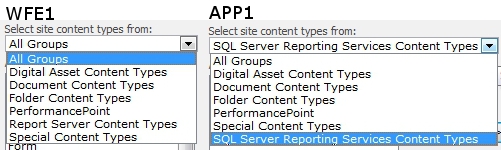
This was quite odd as I had followed all instructions to the letter, ensuring that everything was configured properly.  To troubleshoot this issue further I tried the same test on the application server (APP1) where SSRS 2012 was installed.  To my surprise this worked fine!  I went back to my computer and hit one of the web servers (WEB1) and got the error again.  A closer inspection of the content types shows a subtle difference:

SQL 2012 Reporting Services Content Type Comparisons

The image on the left, WEB1, has a different label for the content types (Report Server Content Types) than those on APP1 (SQL Server Reporting Services Content Types) – quite bizarre.  I would have expected that the content types are central to SharePoint, and not dependent on any particular server.  I downloaded the SQL Server 2012 Reporting Services Add-in for Microsoft SharePoint 2010 technologies and installed it on WEB1 (and in this case WEB2, which also exhibited the same issue).  The process recycled the application pools and all of sudden the content types were the same!

This clearly means that these content types are not installed as a solution into the enviornment, and that the add-on is required on all servers in the farm for the correct SSRS content types to be available.

Problem #2

With the same client, I performed a similar configuration on their Test environment.  I was generating the as-built documentation and noticed that the Power View Integration feature was missing.  Having not done much with PowerView, I was a bit stumped as to why it was not showing.  Had I forgotten to install something off the media?

A quick bit of Googling told me that PowerView is installed as part of SSRS 2012.  OK, but why isn’t this working?  I decided to check over SSRS 2012 to make sure I hadn’t missed anything.  When I went to do my litmus test for SSRS 2012, there was a key set of content types missing:

SQL 2012 Reporting Services Missing Content Types
(“Report Server Content Types” are SQL 2008 R2 content types and not SQL 2012 contetn types, as we established for Problem #1)

Time to revisit this SEO Agency at SQL Server 2012 Reporting Services Add-in for Microsoft SharePoint 2010 technologies.  Amongst the functionality listed that it provides is:

  • Power View, a feature of Microsoft SQL Server 2012 Reporting Services Add-in for Microsoft SharePoint Server 2010 Enterprise Edition, is an interactive data exploration, visualization, and presentation experience.

In the Test environment, all of the SharePoint roles and SSRS 2012 was installed on a single server.  I would have imagined that the functionality provided by the add-in would have been installed as part of SSRS 2012, but and on closer inspection of Todd’s article I forgot to select the add-on specifically as an option.  After installing the add-on, I now had the Power View feature available:

SQL 2012 Reporting Services PowerView Feature


Key Learning for SSRS 2012

Having gone through two configurations with SSRS 2012, it is vital that the SQL Server 2012 Reporting Services Add-in for Microsoft SharePoint 2010 technologies is installed – either off the media or from the download.  It was taken for granted that its predecessor was always installed for a SharePoint installation, so it was never an issue in the past.  It is also important to note that these components are not installed as a solution into the farm, and doing it on one server will not guarantee that all servers will have the correct bits installed.  If you are setting up SQL 2012 Reporting services, be sure to install this component on all servers in the farm!