Turn Off Second Stage Recycle Bin

A quick way to turn off the Second Stage Recycle Bin in SharePoint 2010 – set the quota to zero. In Central Admin, you cannot set a zero value, but there is an option to turn it off.

foreach ($webApp in Get-SPWebAPplication)
{
    $webApp.Name
    $webApp.SecondStageRecycleBinQuota = 0
    $webApp.Update()
}

Simple enough, and while working on a client site I’ve come across an issue with a particular web application and received the error:

Exception setting "SecondStageRecycleBinQuota": "Access is denied. (Exception from HRESULT: 0x80070005 (E_ACCESSDENIED))"
At line:4 char:13
+     $webApp. <<<< SecondStageRecycleBinQuota = 0
    + CategoryInfo          : InvalidOperation: (:) [], RuntimeException
    + FullyQualifiedErrorId : PropertyAssignmentException

Both in PowerShell and in Central Admin, I was able to set the quota for the second stage recycle bin to as low as 1%, but not turn it off.  In Central Admin, I was getting this error:
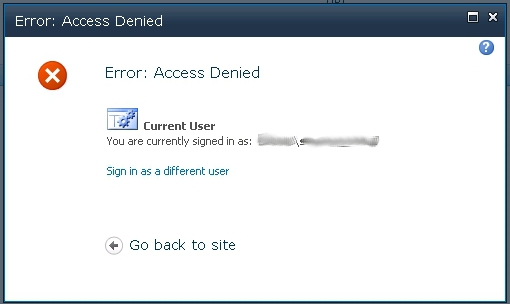
CA-SecondStageRecycleBin

After turning on verbose logging, this error was picked up:

Access Denied for /_admin/vsgeneralsettings.aspx?type=gen&WebApplicationId=707dac5e9db64a96b509c5f153ace591&IsDlg=1. StackTrace:  
 at Microsoft.SharePoint.Utilities.SPUtility.HandleAccessDenied(HttpContext context)   
 at Microsoft.SharePoint.Utilities.SPUtility.HandleAccessDenied(Exception ex)   
 at Microsoft.SharePoint.Library.SPRequest.GetAdminRecycleBinItems(String bstrSiteUrl, Object& pvarItems, UInt32& pdwNumberOfItems)   
 at Microsoft.SharePoint.SPRecycleBinItemCollection.EnsureContent()   
 at Microsoft.SharePoint.SPRecycleBinItemCollection.get_Count()   
 at Microsoft.SharePoint.SPRecycleBinItemCollection.GetSortedSecondStageIds()   
 at Microsoft.SharePoint.SPRecycleBinItemCollection.DeleteAllSecondStageItems()    
 ... 

It appeared that the logged in account did not have access to the recycle bin to remove the contents.  This was not a problem for other Web Applications, and did not use the Farm Service Account as I expected.  Granting the logged in account with Full Control to the Web Application User Policy for the problematic Web Application allowed me to turn off the second stage recycle bin with both PowerShell and Central Admin.  I can only presume the logged in account already had access to the other Web Applications which is why they worked.

Replace URL in a SharePoint List

Had a recent situation where a client had changed the URL of their K2 infrastructure during an upgrade.  Since all the links from their SharePoint lists were now broken it was up for PowerShell to update the 14,000 items. This customer had three lists in the same site with different column names, so I wrote it as a function for re-use.

function Replace-URL-In-List ([string]$webUrl, [string]$listName, [string]$columnName, [string]$oldValue, [string]$newValue) {
 
    $web = Get-SPWeb $webUrl
    $list = $web.Lists[$listName]
    $allItems = $list.Items
    foreach ($item in $allItems)
    {
         if ($item[$columnName] -like "*"+$oldValue+"*")
         {
            "OLD: " + $item[$columnName] + "    NEW: " + ($item[$columnName] -Replace $oldValue,$newValue)
            $item[$columnName] = ($item[$columnName] -Replace $oldValue,$newValue) #Comment this line out to run as a test
            $item.Update()  #Comment this line out to run as a test
          }
    }
#This is to confirm the values parsed in
"OLD VALUE: " + $oldValue
"NEW VALUE: " + $newValue
 
}
 
$webUrl = "https://portal/web/"
$oldValue = "https://oldK2/_tools"
$newValue = "https://newK2/tools"
 
Replace-URL-In-List -webUrl $webUrl  -listName "Requests" -columnName "ViewForm" -oldValue $oldValue -newValue $newValue

Collating SharePoint Server Details

I’m often required to gather details about the underlying SharePoint Farm infrastructure, and with a few WMI queries this can be done in snap.

This script retrieves the CPU cores, physical RAM, disk configuration, NIC configuration and operating system details.

foreach ($server in Get-SPServer) {
		"Server: " + $server.Address
		"--------------------------"
		#TEST WMI CONNECTION
		try {
		#CPU
		$wmi = Get-WmiObject -Class Win32_processor -Computer $server.Address -ErrorAction SilentlyContinue
		"Total Cores: " + $wmi.NumberOfCores
		" "
 
		#RAM
		$wmi = Get-WmiObject -Class Win32_ComputerSystem -Computer $server.Address -ErrorAction SilentlyContinue
		"Total RAM (GB): "  + $wmi.TotalPhysicalMemory/1GB
		" "
 
		#DISKS
		$wmi = Get-WMIObject Win32_LogicalDisk -filter "DriveType=3" -Computer $server.Address -ErrorAction SilentlyContinue
		foreach ($drive in $wmi) {
			"Drive: " + $drive.DeviceID
			"Size (GB): " + $drive.Size/1gb
			"Free Space (GB): " + $drive.FreeSpace/1gb
			" "
		}
 
		#NIC
		$wmi = Get-WmiObject -Class Win32_NetworkAdapter -Computer $server.Address -ErrorAction SilentlyContinue
		foreach ($nic in ($wmi | ? {$_.Speed -gt "1"})) {
			"NIC Name: " + $nic.ServiceName
			"NIC Speed (Mbps): " + $nic.speed/1000/1000 # Mbps
			" "
			}
 
		$wmi = Get-WmiObject -Class Win32_NetworkAdapterConfiguration -Computer $server.Address -ErrorAction SilentlyContinue
		foreach ($con in ($wmi | ? {$_.IpEnabled -eq $true})) {
			"NIC Name: " + $con.ServiceName
			"IP Address: " + $con.IPAddress
			" "
		}
 
		#OS
		$wim = Get-WMIObject -Class Win32_OperatingSystem -Computer $server.Address -ErrorAction SilentlyContinue
		"Operating System: " + $wim.Caption
		"Operating Service Pack: " + $wim.ServicePackMajorVersion
 
		}
		catch {
			"Could not connect to WMI provider"
			}
		$wmi = ""
		" "
		" "
	}