SharePoint 2010 User Profile Sync Service

One of the big bugbears I’m having with SharePoint 2010 is the User Profile Syncronisation Service (UPSS). It has been a struggle on and off over many weeks, and I just cannot get it to work properly on our intranet farm. I’ve ready many, many well documented guides on how to configure UPSS, but never had a sucessful sync occur. There seems to be a general consensus online that UPSS is problematic.

In my attempts, I’ve played around with Forefront Identity Manager, applied hotfixes, recreated the service application and just about everything inbetween. After everything I have tried, I’m getting pointed down the route of starting again. The other complication is that the farm went unoffically into production, and now most of the organisation is using it. This makes it very difficult to be able to safely perform configuration changes and restart IIS without a lot of screaming from the end users. The situation has also been escalated as it appears no audiences can be applied due to he UPSS not currently being operational.

I recalled while reading Professional SharePoint 2010 Administration the notion of a Services Farm that does nothing else than provide SharePoint services to be consumed. This was reinforced at the Australian TechEd session SharePoint storage and physical architecture best practices. In summary, these services can be published from a Services Farm and consumed by one or more other farms. This can save a lot of duplication of effort, and instead of having UPSS, search, managed metadata etc for each farm, it can be consolidated and save the computing and operational resources to manage those.

Following this idea, I have planned out how I would like to see this work in my current environment, I also have the added requirement that HR may potentially wish to have their own, secure farm. This helps support my arguement going forward, and allows us to be flexible:
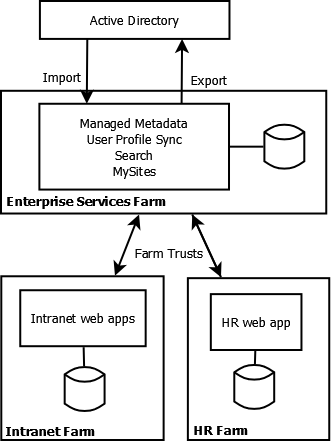
SharePoint UPSS Plan

I’ll post an update once I have this configured, hopefully I’ll have a chance within the next week to get this operational.

UPDATE: I’ve made significant headway on setting this up, and now compiling my ultimate guide to UPSS, MySites, Social Connectivity, People Search and Trusted Farms!

Security Concerns on SharePoint 2010 HR Site

A few weeks ago, I was approached by our HR department to advise how to best secure the personnel files inside SharePoint. There were some concerns that a number of staff (IT and non-IT) who had unncessary access to this data. So I outlined for them our structure, who had access at each level, and them some options to mitigrate their security concerns. The HR executive understood that it would be impracticle to totally remove IT staff access from accessing personnel files, but agreed that it should be limited.

Current Scenario

The current structure of the INTRANET is along the lines of:

(1)SharePoint Farm:    COMPANY FARM
(2)Web Application:    |__INTRANET
(3)Site Collection:       |__Human Resources
(4)Site:                  |__Human Resources Site (root of site collection)
(5A)Site (subsite):          |__Management Tools
(5B)Site (subsite):          |__HR Only
(6)Document library:            |__Personnel Files

Let’s look at how we can give acccess to the Personnel Files (6).

  1. At the lowest level (5B), a Site typically has the permissions defined in the Owners/Members/Visitors SharePoint groups. Removing access at this level, will block access for the majority of staff. Even with Visitor access at the top level site (4) we can prevent access to the lower sub-Sites (5B).
  2. At the Site Collection level (3), there is an overriding group called Site Collection Administrators that effectively have access or the ability to grant access to all content below it, including the HR Only Site (5B).
  3. At the Web Application level (2), we have a user policy defined, which gives a group of people full access to ALL site collections (eg Human Resources, Operations, Sales etc) and all Sites (inc HR Only (5B)).
  4. At the top most level (1) there are Farm Administrators. The role here is to manage the SharePoint infrastructure. These people, although they may not have explicit access to any Web Applications (2) or Site Collections (3), they are in a position to grant access to themselves or someone else. It will be impossible to not have some IT staff assigned at this level. There are no options to restrict Farm Admins from changing permissions.

In my original communication, I included a list of staff who had access, and it was quite clear there was an abundance of people with access at the latter to levels – (1) and (2) which is what gave most concern to our HR department.

Mitigation Options

  1. Enable full auditing on the HR Only site to record who has accessed information
  2. PRO: Quickest to achieve, will not require an internal approval processes (treated as BAU).
    CON: Won’t prevent access, will require monitoring from HR to review audit reports.

  3. Trim the people with access as a Farm Admin, within a Web Application User Policy and Site Collection Administrators for Human Resources.
  4. PRO: Quick to achieve.
    CON: Will require staff who do have permission to perform more administrative functions, will require a submission for approval.

  5. Create a separate web application just for HR and restrict Web Application User Policies and Site Collection Administrators
  6. PRO: Moderate effort to achieve, should be able to move existing content without a lot of rework.
    CON: Farm Administrators can still grant access to themselves or others, will require a submission for approval.

  7. Create a separate SharePoint farm for HR-INTRANET. Least amount of non-HR priviledges can be granted to this farm, and lock down the IT staff access.
  8. PRO: Most secure option, does not impact administration effort for INTRANET, should be able to move content across without a lot of rework, can provide a seamless transition between INTRANET and HR-INTRANET, can share some service applications across farms (eg managed metadata).
    CON: Most amount of effort to achieve initially, will require a submission for approval.

Recommendation
I suggested that if HR is happy that auditing will be sufficient to monitor access to the HR Only site, then mitigation option 1 would be recommended.

However if it is not sufficient just to know who has accessed Personnel Files, then mitigation option 4 would be suitable for a complete, separate HR SharePoint farm.

Result
Site auditing was enabled as an immediate measure, and a proposal was submitted to proceed with the provisioning of a dedicated HR SharePoint farm. At the time of writing this is still awaiting approval.

Backing Up My Digital Files

Working in the IT industry, I have seen my fair share of system failures and the data loss that ensures. Whenever something like this happens, I often ask myself how I’d be affected if I’d lost all my personal data. In reality, I could probably cope with losing everything *but* my photos. Photos (and other treasured memories) are the irreplacable items. I can recreate spreadsheets, documents and the like, but I’ll never have the chance again with my family to capture those memories.

Many years ago, when we first started with digital photography, I started wondering how to best backup my documents for total fear that some day I’d loose it all. I came across two main risks, and here is how I mitirgated them:

Hard drive crash: Moderate risk
I have many drives that have given me many, many years of service. I’ve also had one or two with problems that renders the data inaccessible. To get around this, I have an external USB drive that all data is backed up to. I’ve had this in place for over five years, and I’m now onto my second generation unit which is the same size as my main data drive (1TB). This is set as a scheduled task, so its not a chore for me to manage. I just use Robocopy – it is super simple to setup.

Cost for 1TB USB drive: $150

However, about 18 months ago I started becoming paranoid that this was not sufficient, and either there would be a problem before the files were copied off to the external drive, or the scheduled task would fail and I’d be without a backup for several weeks (which has happened). At the time I was doing a technology refresh for home, and invested in a mirrored raid array as the first line of defence. (For those not aware, a mirrored array is as simple as two sets of disks, which have the same information written to both of them, and managed by your hardware. If one disk fails, you should be able to continue uninterrupted, and then replace the failed disk ASAP. The added benefit is that disk reads are twice as fast as you can have two drive heads reading data from separate disks at the same time.)

Cost for the second drive and better motherboard: ~$150

Further to that, I also duplicate some photos to my wife’s laptop on a scheduled task too – but that is more for convenience for her than for backup purposes. Again, Robocopy serves well.

Incidently, after reading a lot of advice online, I never wipe my camera data cards until the images are in at least two other locations, usually my PC and the external drive.

Theft/fire/damage: Low risk
To combat total phyiscal loss, I always had the intention to leave my external USB drive with my mother-in-law, and conduct a backup at least once a week for it to be taken off-site. In practice, this would have been great, but in reality it never happened. I needed my data off-site, and I needed a method that was self-maintaining and affordable; online backups fitted the bill.

After a considered review, I ran a trial with BackBlaze. What impressed me the most was an article I read on building Petabytes on a budget. The engineering that had gone into their pods impressed me, as well as the pricing model of unlimited storage for US$5 a month. I have now been using them for about 11 months, and been very happy. I randomly test a restore of a few files, and there is nothing I need to do other than check that their software is still running (hasn’t crashed out yet). My only gripe was the portability of the data between computers. I rebuilt my PC earlier in the year, and I had to re-upload all my data again (a 3 month process with my ISP data limits). The customer service was receptive of my feedback, and their client software now allows this porability.

Cost: US$50pa (or $5 per month)

With these softwarekeep.co.uk methods in place, I sleep well knowing that my data is safe. The data integrity process is for all intensive purposes entirely automated, and will serve me well for many years to come. You could easily forego either the USB drive or the mirrored drive and save some money – but I wouldn’t recommend foregoing both. Removing one option would leave you with an initial first year cost of about $200, and then $50 pa ongoing. A very cheap method of insurance for keeping those precious memories intact.

Back to Work

I’m back to work after four weeks of leave for the birth of my second child, a baby girl. It has been a wonderful four weeks, spending time with my family and generally relaxing. Although I wasn’t totally offline, I wasn’t working (nor updating my blog) and got to catch up with friends and family, as well as visit some great parks in Brisbane. I struggled a little bit this morning, and was only 10 minutes late into the office.

In the few days that preceeded my return, I was a little anxious about going back – how much work would there be? What was I doing before I left? What was my password to log in? Thankfully, I was able to log in, and the emails were processed by lunchtime, without too much new work for me to worry about. My brain was still a bit mushed from the information re-load, and I didn’t get to have my afternoon nap I had become accustomed to. While I’m still on the high of my holiday time, I hope to keep a relaxed mentality going, and focus on what I can achieve.

As I mentioned, I wasn’t totally disconnected on my break. I still had plenty of time to download & edit photos, get more social on facebook and play a few mindless flash games. And YouTube…great for keeping me awake at 3am while settling a child!

Now that I am back into the world, I plan to blog more regularly, streamline my activities online, and keep that quality time with the family going.

Building the SharePoint House

I’ve been working on a SharePoint 2010 project lately, a migration from a SharePoint 2007 farm.  As usual in this particular organisation, there is never any time for any actual planning, but a desire to just trial and error it.  The only problem is, it has suddenly become production, and I’ve getting bogged down helping various people with site specific requests, rather than completing the infrastructure configuration (don’t even get me started on the user profile synchronization service…).

To help explain why everything is not yet configured, or why I have to keep performing IIS resets on the farm, I’ve been using an analogy to the staff who are coming to me – I call it the SharePoint House.

SharePoint is a big block of land, and we’re building a house (web application) on it.  Let’s call this house Portal.  Portal from the outside looks like a completed house – the foundations are down, there’s a roof, and we have a few rooms (site collections).  Some of these rooms have wardrobes or even other rooms contained within (sub-sites).

Within some of these rooms we have special functions (features) like a kitchen vs a bedroom, and they all have different looks and feels (theming, page layouts).  Inside the rooms, wardrobes etc is a bunch of storage items – drawers, cupboards, boxes – these are used to store stuff (libraries/content) and some of it may even be collated together to represent something in particular (content types).

Of course, no house would be complete without running water, electricity, gas, cable TV etc all connected up (service applications).

So when someone asks me questions or complains about the Portal, I explain the SharePoint House.  I then make a point that we didn’t use an architect to design the SharePoint House, we just started building.  Then all of a sudden, while we were still putting up rooms, everyone all of a sudden started moving in.  In the chaos of moving all their own stuff across, it was poorly organised and now hard to find.  To make matters worse, when anyone went to use the toilet…it wouldn’t flush.